

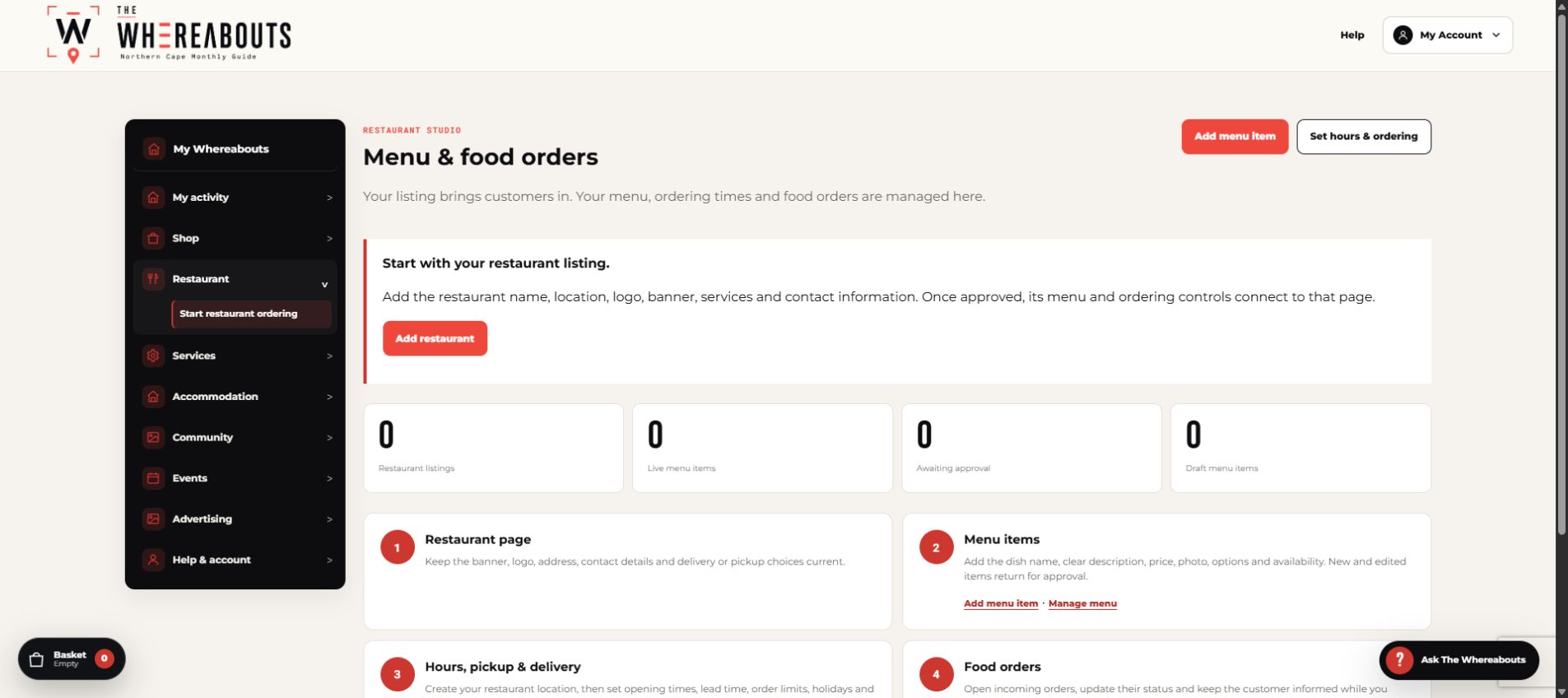
Manage menu items, service hours and food orders from the seller dashboard.
- Step 1Open Restaurant Overview.
- Step 2Add menu items with clear names, prices, photos and options.
- Step 3Configure ordering hours, preparation time and holidays.
- Step 4Place a full test order.
- Step 5Confirm staff can see and update food orders from the dashboard.
Set it up from start to finish
- Open My Whereabouts and choose Restaurant ordering.
- Complete the restaurant profile, collection or delivery choices, trading hours and order notices.
- Create clear menu sections such as Breakfast, Mains, Drinks and Extras.
- Add each item with its price, photo, description, options, availability and preparation notes.
- Place a test order and confirm that it appears in the restaurant order queue before accepting live orders.
Before publishing
- Use a wide, sharp banner and a transparent logo.
- Confirm allergens, option prices, minimum order rules and fulfilment times.
- Keep unavailable items switched off instead of deleting them.